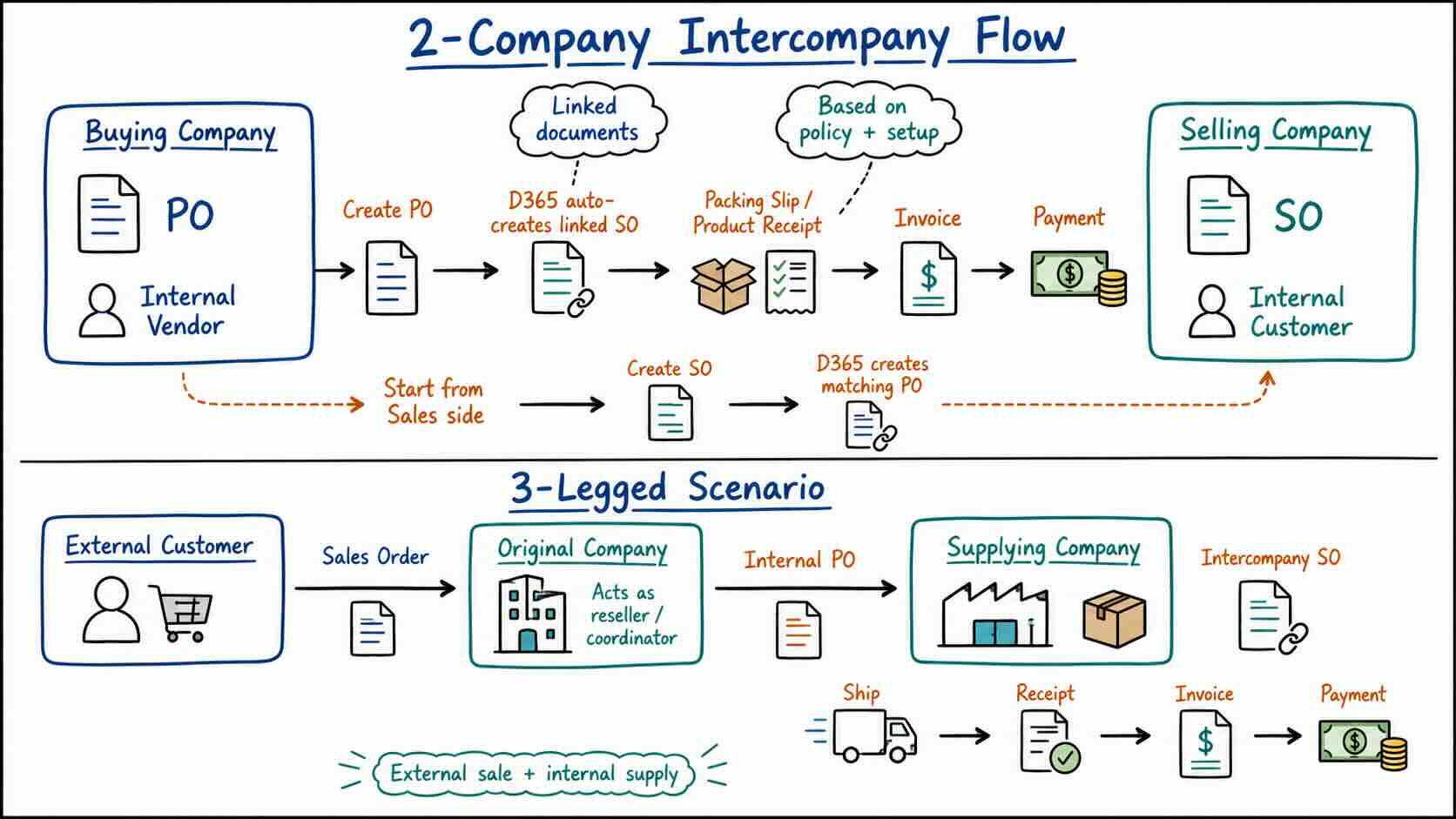
Intercompany processing in Dynamics 365 Finance and Operations connects transactions between legal entities. It is not just a purchasing or sales feature. It depends on trade relationships, released products, order policies, and intercompany accounting all being correct.
What the process does
A typical intercompany flow creates linked documents across companies:
- A buying company creates a purchase order to an internal vendor.
- D365 creates the related sales order in the selling company.
- Packing slip, product receipt, invoice, and payment are posted across the chain based on policy and setup.
The flow can also start from the sales side. If the selling company creates a sales order for an internal customer, D365 can create the matching purchase order in the buying company.
A three-legged scenario adds an external customer order. The original company sells to the external customer, creates an internal purchase order, and the supplying company receives the intercompany sales order.
Required setup
Before testing the process, confirm these basics.
Customer and vendor relationship
Each legal entity must represent the other side correctly:
- The buying company uses a vendor account for the supplying company.
- The supplying company uses a customer account for the buying company.
- The intercompany trading relationship is active.
If this relationship is wrong, the linked order will not be created reliably.
Released products
The item must exist in every legal entity involved in the chain. A common failure is testing the order flow before the product is released to the target company.
Order policies
Review the intercompany sales and purchase policies before assuming the flow is broken. These policies control behavior such as order numbering, direct delivery behavior, automatic packing slip/product receipt posting, and payment journal automation.
Intercompany accounting
Operational setup is not enough. Intercompany accounting must also be configured for the company pair.
At minimum, validate:
- Intercompany main accounts
- Journal names for each legal entity
- Destination company setup
- Debit and credit ledger dimensions
The LedgerIntercompany setup is what tells D365 how to post the accounting side of the transaction.
Practical order flow
For a purchase-driven two-legged process:
- Create a purchase order in the buying company.
- Select the vendor that represents the supplying legal entity.
- Confirm that D365 creates the intercompany sales order in the supplying company.
- Process packing slip/product receipt as required.
- Invoice the sales side and purchase side according to the configured process.
- Review vouchers in both companies.
For a sales-driven process, the same logic applies in reverse: the sales order creates the matching intercompany purchase order.
Data points worth knowing
For troubleshooting or validation, these tables are useful:
InterCompanyTradingPartner: stores the customer/vendor party relationship by legal entity.InterCompanyTradingRelation: stores the active relationship between the customer-side and vendor-side trading partners.LedgerIntercompany: stores the intercompany posting definition.
These are not usually the first place to configure the process, but they are helpful when the form setup looks correct and the system still does not behave as expected.
Common issues
The linked order is not created
Check the product first. If the item is missing in one company, D365 can stop before creating the purchase order or intercompany sales order.
Also confirm that the intercompany trading relationship is active and that the customer/vendor accounts point to the correct legal entities.
Purchase invoice does not match the sales invoice
Intercompany purchase invoice posting can fail when the purchase invoice ID does not match the related sales invoice. Check the invoice number sequence in the sales company and confirm both sides of the chain reference the expected invoice.
Invoice amounts differ
If the customer invoice amount and purchase update amount differ, compare charges, tax, price setup, and invoice posting details on both sides. Do not troubleshoot only from the purchase order.
Charges block invoice posting
Intercompany charges can cause posting failures when charge setup creates inconsistent markup references. Pay close attention to charges with customer/vendor type, non-fixed category, and Keep = Yes.
Consultant checklist
Before escalating an intercompany issue, check the chain in this order:
- Trading relationship is active.
- Customer and vendor accounts point to the correct legal entities.
- Product is released in every company involved.
- Intercompany order policies match the intended process.
- Intercompany accounting is configured for the company pair.
- Journal names and ledger dimensions are valid.
- Invoice numbers, amounts, charges, and tax match across both sides.
Bottom line
Intercompany works when the full chain is consistent. Do not validate only the visible order. Validate the relationship, product, policy, accounting, and posting results across both legal entities.