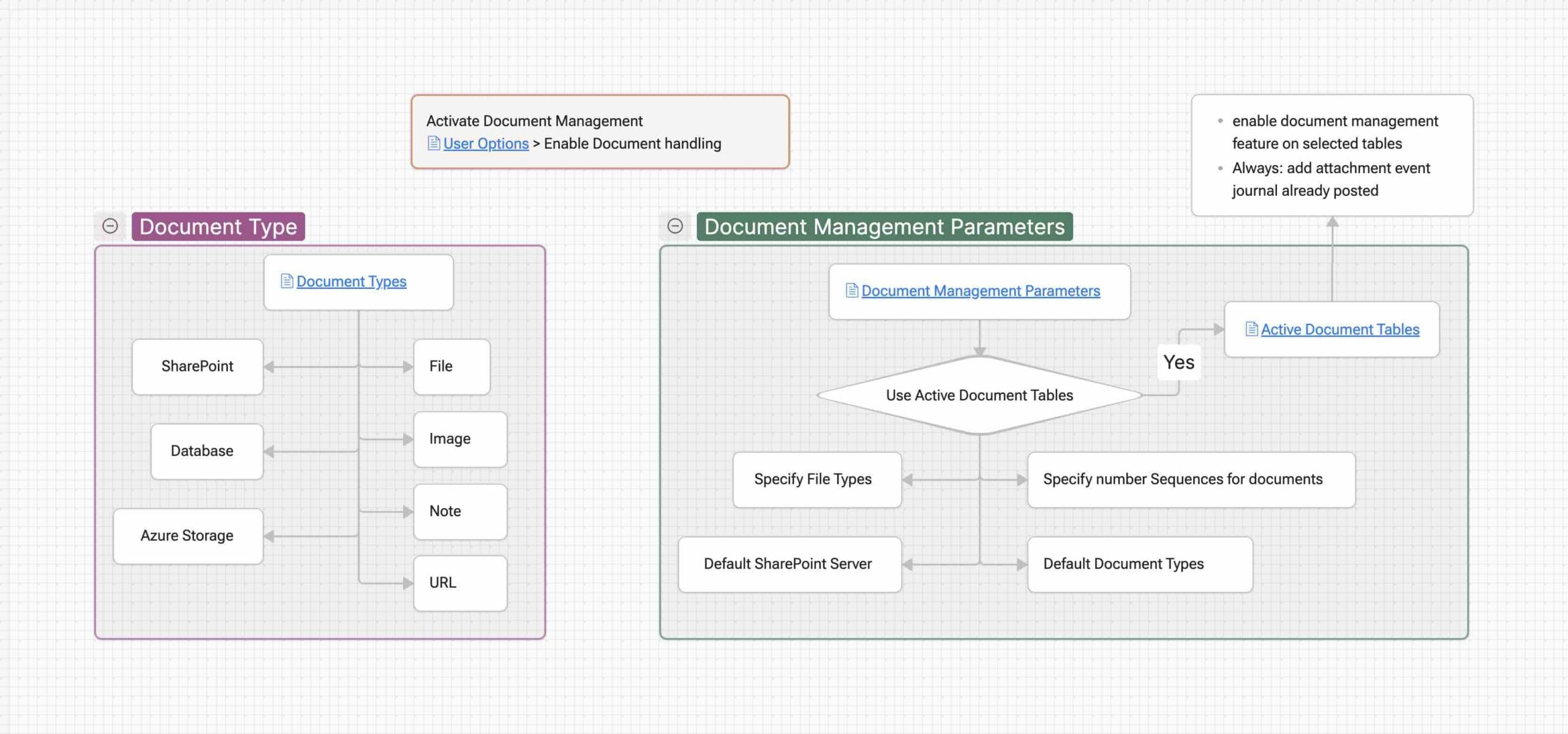
Document management in Dynamics 365 Finance allows users to attach, store, and manage documents (files, images, URLs, notes, etc.) directly on business records such as invoices, journals, and master data.
The setup is straightforward and mainly involves three areas:
- Activating the feature
- Defining document types
- Configuring document management parameters
Activate Document Management (User-Level Setting)
User options > Preferences > Enhanced Document handling
Tip
Use DMF (User Information) for bulk update
Define Document Types
Organization administration > Document management > Document types
Key Fields to Configure
- Document type name
- Class (File, Image, URL, Note, etc.)
- Storage location (SharePoint, Azure, Database)
- File type and size restrictions
Configure Document Management Parameters
Organization administration > Document management > Document management parameters
Use Active Document Tables
- Enable Use active document tables
- Allows document management to be controlled per table
When this option is enabled, document management must be explicitly turned on for each table.
Active Document Tables
Organization administration > Document management > Active document tables
Here you define which tables allow document attachments, such as:
- Vendor master
- General journal
- Vendor invoice
- Sales order Headr
Enable the “Always” flag to allow document attachments even after a journal has been posted.
Specify File Types
- Restrict allowed file extensions (PDF, XLSX, DOCX, JPG, etc.)
Default SharePoint Server
- Defines the SharePoint location where documents are stored
Number Sequences (Optional)
- Used if document numbering is required
How It Works in Practice
- User opens a business record (for example, a vendor invoice)
- Clicks the Attachments (paperclip) icon
- Selects a document type
- Uploads or links the document
- The document is stored based on its configuration (SharePoint, Azure, etc.)