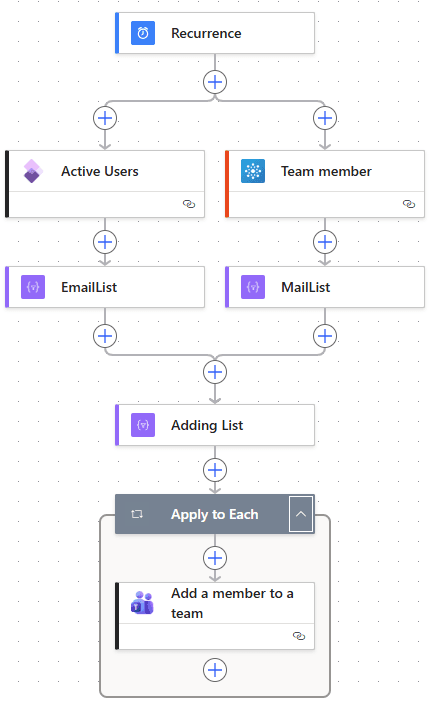
A simple Power Automate flow: on a schedule, it pulls the active F&O users, pulls the current Teams members, works out the difference, and adds only the missing people.
Structure
- Recurrence — schedule trigger
- Active Users — list active users from D365 F&O
- Team member — list current members of the Teams team
- EmailList — select the alias column out of the F&O result
- MailList — select the mail column out of the Teams result
- Adding List — filter array: who is in F&O but not in Teams
- Apply to Each → Add a member to a team — add the difference
Steps 2/4 and 3/5 form two parallel branches that only converge at step 6. That convergence is the reason ordering matters so much — the Adding List filter cannot be authored until both EmailList and MailList exist and are named exactly as referenced.
Step 1 — Recurrence
- Connector: Schedule
- Action: Recurrence
Start here. Pick a cadence that matches how often users get onboarded
Step 2 — Active Users
- Connector: Fin & Ops Apps (Dynamics 365)
- Action: List items present in a table
This is the left branch. Query the Users table and filter down to real, enabled, non-service accounts.
{
  "type": "OpenApiConnection",
  "inputs": {
    "parameters": {
      "dataset": "xxxx.operations.dynamics.com",
      "table": "Users",
      "$filter": "enable eq true and isMicrosoftAccount eq false",
      "$select": "id,networkAlias"
    },
    "host": {
      "apiId": "/providers/Microsoft.PowerApps/apis/shared_dynamicsax",
      "connection": "shared_dynamicsax",
      "operationId": "GetItems"
    }
  },
  "runAfter": {}
}
Two things worth calling out:
enable eq truekeeps disabled users out, so the flow never re-adds someone who was deactivated.isMicrosoftAccount eq falsestrips out system and integration accounts that should not appear in a human Teams channel.$selectis limited toid,networkAlias— pulling only what you need keeps the payload small and the run fast.
networkAlias is the field that carries the user’s email/UPN, which is the value you will match on later.
Step 3 — List Team member
- Connector: Microsoft Teams
- Action: List members
The right branch. Retrieve the current membership of the target team. Build it now, before either Select, so both source lists exist before you start shaping them.
This action has no dependency on step 2, so Power Automate runs the two branches in parallel.
Step 4 — EmailList
- Connector: Data Operation
- Action: Select
Flatten the F&O result set into a plain array of aliases.
{
  "type": "Select",
  "inputs": {
    "from": "@outputs('Active_Users')?['body/value']",
    "select": "@toLower(item()?['networkAlias'])"
  },
  "runAfter": {
    "Active_Users": [
      "Succeeded"
    ]
  }
}
The select expression has no key, which produces a flat array of strings rather than an array of objects. That matters — the comparison in step 6 is a plain string containment check, and it only works against flat arrays.
Step 5 — MailList
- Connector: Data Operation
- Action: Select
Same transformation, other side.
{
  "type": "Select",
  "inputs": {
    "from": "@outputs('Team_member_')?['body/value']",
    "select": "@toLower(item()?['email'])"
  },
  "runAfter": {
    "Team_member_": [
      "Succeeded"
    ]
  }
}
Both branches now produce the same shape: a flat array of email strings. Normalising both sides to an identical shape before comparing them is the trick that keeps the next step to a single line.
Step 6 — Adding List
- Connector: Data Operation
- Action: Filter array
This is where the two branches converge, and it is the step that absolutely must be built last of the data-shaping actions.
{
  "type": "Query",
  "inputs": {
    "from": "@body('EmailList')",
    "where": "@not(contains(body('MailList'), item()))"
  },
  "runAfter": {
    "EmailList": [
      "Succeeded"
    ],
    "MailList": [
      "Succeeded"
    ]
  }
}
Read the where clause plainly: keep every F&O user whose email is not already in the Teams member list. The result is the delta — only the people who need adding.
Step 7 — Apply to Each → Add a member to a team
- Connector: Control, then Microsoft Teams
- Action: Apply to each, then Add a member to a team
The final step iterates the delta and adds each person.
{
  "type": "Foreach",
  "foreach": "@outputs('Adding_List')['body']",
  "actions": {
    "Add_a_member_to_a_team": {
      "type": "OpenApiConnection",
      "inputs": {
        "parameters": {
          "body/userId": "@item()",
          "teamId": "xxxxxxxxxxxxxxxxx"
        },
        "host": {
          "apiId": "/providers/Microsoft.PowerApps/apis/shared_teams",
          "connection": "shared_teams",
          "operationId": "AddMemberToTeam"
        }
      }
    }
  },
  "runAfter": {
    "Adding_List": [
      "Succeeded"
    ]
  }
}